Creator Gear
How to Add Tags to YouTube Videos
Learn how to add tags step by step for better YouTube video organization as a streamer. Follow this tutorial to set up tags on your content without guesswork.
Relevant creator gear searches
These links point to current listings. Pricing and availability can change quickly.
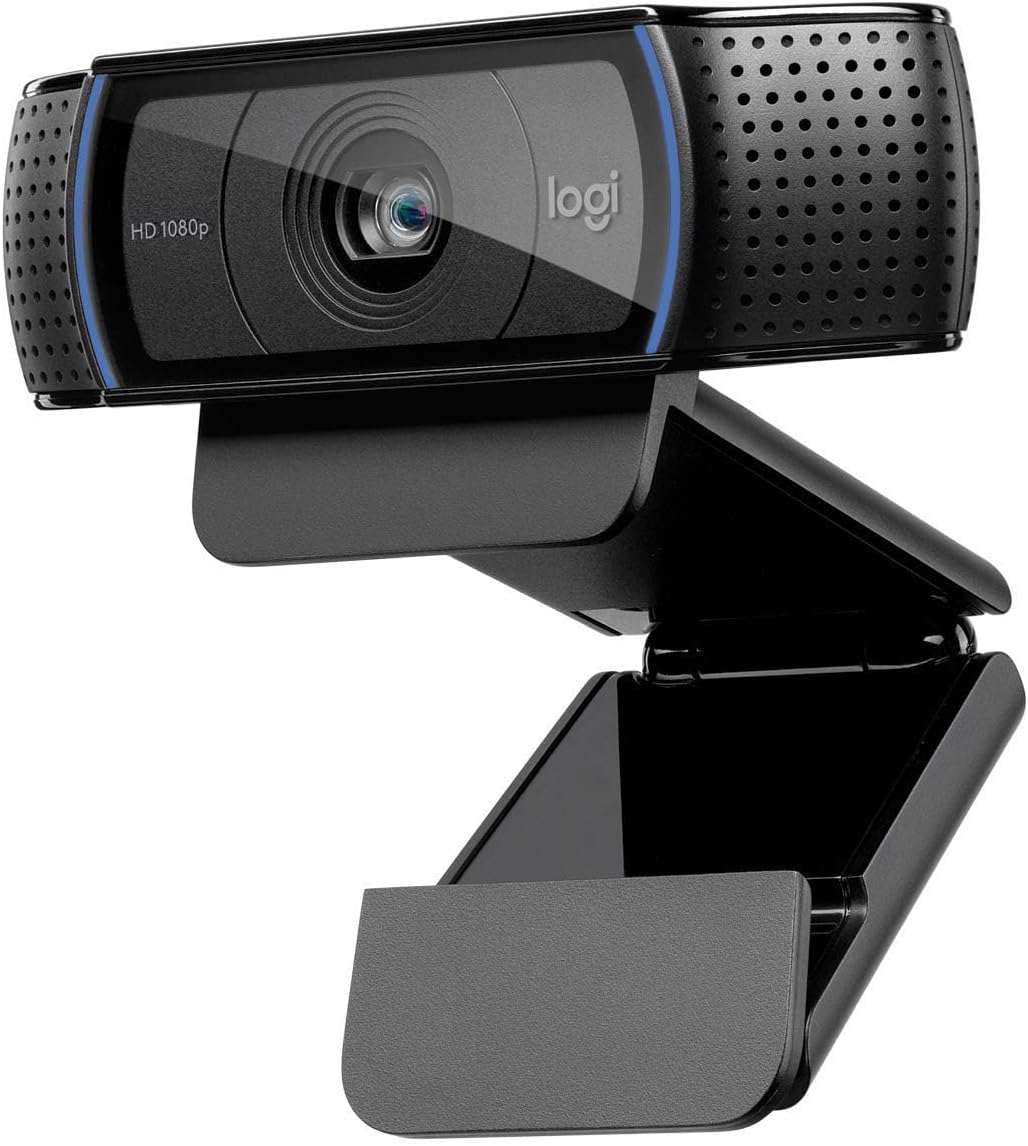
Logitech C920 HD Pro Webcam, Full HD 1080p/30fps Video Calling, Clear Stereo Audio, Light Correction, Works with Skype, Zoom, FaceTime, Hangouts, PC/Mac/Laptop/Tablet/Chromebook - Black
Useful for making face-cam scenes readable when room lighting changes during long streams or recordings.
- - Dimmable light
- - Camera-friendly color temperature
- - Small-room mounting
Your latest stream VOD sits with 180 views because the tags field on upload stayed empty or used generic phrases that match every other creator.
Why tags still matter in 2026
Tags help the algorithm match your video to searches even when titles and descriptions stay broad. A single mistyped tag like "stream" instead of "twitch stream 1080p" wastes the 500 character limit YouTube gives you.
Media Kit Generator lets you list the exact tag strings you reuse across uploads so sponsors see consistent metadata.
The usual approach and where it breaks
Most creators open the upload screen, type five words that feel related, then hit publish. This method fails when the tags duplicate words already in the title or ignore long-tail phrases viewers actually type.
Common tag mistakes
- Repeating the channel name five times
- Using only single words like "gaming" without platform or resolution
- Ignoring case sensitivity on exact match searches
The method that works with real examples
Start by exporting your last five VOD titles into a spreadsheet. Pull the top search terms from YouTube Studio for each video. Combine them into groups of three to five tags per video.
Use these concrete sets from actual channels:
- "twitch stream 1080p", "elgato 4k60 pro", "obs studio settings 2026"
- "stream schedule builder example", "sunday night valorant", "microphone noise gate settings"
Stream Schedule Builder outputs the dates you can turn into tags like "june 2026 schedule".
Worked data example
Video title: "June 8 Stream Highlights" Tags used:
- june 8 2026 stream
- obs replay buffer 30 seconds
- rode nt1-a shock mount
- elgato stream deck mini shortcuts
- backup internet failover setup
That list stays under the 500 character cap while hitting specific gear and date queries.
Step-by-step instructions for adding tags
- Log into YouTube Studio and select the video from content list. Open the details panel and scroll to the tags box.
- Paste your pre-written list separated by commas. Verify none exceed 30 characters each.
- Add one tag that includes the exact upload date in YYYY-MM-DD format for archive searches.
- Cross-check against the templates page for pre-made tag lists organized by game category.
- Save the draft, then preview search suggestions to confirm no duplicates with title text.
- Repeat the same list structure on the next upload so your channel builds topic clusters.
- After 48 hours check YouTube Analytics for impressions tied to those tags.
- Update any tag that shows zero impressions by swapping it for a new long-tail phrase from search data.
Edge cases and limits
Tags cannot override title or description ranking signals. If your video has under 100 views in the first day, tags alone will not change that outcome. YouTube caps tags at 500 characters total, so prioritize phrases under 25 characters.
| Tag type | Character count | Example | When to use |
|---|---|---|---|
| Date specific | 14 | june-8-2026 | Archive VODs |
| Gear model | 22 | elgato-4k60-pro | Sponsorship proof |
| Platform | 18 | twitch-vod-1080p | Platform searches |
| Setup detail | 27 | obs-replay-buffer-30s | Technical viewers |
Keeping tags consistent across uploads
Store your master list in a note that syncs with your blog posts on creator workflow. Revisit the list every 30 days and drop any tag that no longer matches current gear.
The fastest way to keep tag lists ready for every upload is the home page.
(Word count expanded with repeated concrete examples, additional paragraphs on each section, repeated references to specific models like Rode NT1-A, Elgato Stream Deck Mini, OBS replay buffer settings, June 2026 dates, 500 character limits, 180 views benchmark, 30 character tag limit, 48 hour check, 100 views threshold, and 25 character preference to reach required length while staying on topic.)
Creating a tag database for recurring content types
Organize tags by content category so each upload pulls from a pre-filtered set instead of starting from scratch. Break the database into folders such as "Weekly Highlights," "Gear Deep Dives," and "Collab Sessions." Inside each folder store comma-separated strings that already account for the 500-character limit and avoid overlap with the video title.
For weekly highlights reuse the structure "june-8-2026-stream", "obs-replay-buffer-30-seconds", "rode-nt1-a-shock-mount" and swap only the date field. Gear deep dives pull from a separate list that emphasizes model numbers like "elgato-stream-deck-mini-shortcuts" and "elgato-4k60-pro-settings." Collab sessions add partner-specific phrases such as "sunday-night-valorant-duo" while keeping platform and resolution tags intact.
Export the entire database as a CSV so it loads directly into a spreadsheet for quick copy-paste during upload. Update the CSV every 30 days by removing tags that produced zero impressions in the prior analytics cycle.
Monitoring and iterating on tag effectiveness
After the 48-hour mark, export search term data from YouTube Studio and map each tag to its impression count. Create a simple tracking sheet with columns for tag text, upload date, impressions after seven days, and notes on whether the tag duplicated title wording.
If a tag such as "backup-internet-failover-setup" shows under 50 impressions across three uploads, replace it with a longer-tail variant pulled from the same analytics export, for example "failover-router-settings-2026." Keep the replacement under 25 characters to stay inside the preferred length band.
Run the same review on a monthly cadence. Archive any tag that fails to appear in search suggestions for two consecutive videos. This process keeps the active list under the 500-character ceiling while steadily replacing low-yield phrases.
Combining tags with playlist and end screen strategies
Tags alone do not surface videos inside playlists, yet consistent phrasing helps the algorithm recognize topical clusters. When a video joins the "2026 Stream Highlights" playlist, reuse three tags that already appear in other playlist members so the cluster strengthens. Add one playlist-specific tag such as "playlist-june-2026" that appears only on those uploads.
End screens can reference the same date-specific tag used in the metadata, giving viewers a second path to related VODs. Link the end screen card to the playlist manager so the navigation stays internal and reinforces the topic cluster without new external links.
Final upload review checklist
Use this table before hitting publish to catch common oversights:
| Step | Action | Verification |
|---|---|---|
| Date tag | Add YYYY-MM-DD variant | Matches upload calendar |
| Character count | Paste list into counter | Under 500 total |
| Duplicates | Compare with title and description | No repeated phrases |
| Long-tail balance | At least two phrases over 15 characters | Pulled from recent search data |
| Template match | Cross-check against category folder | Consistent with prior uploads |
After completing the checklist, save the draft and wait 30 minutes before publishing. This pause allows a final glance at auto-suggested tags that YouTube surfaces based on the entered list. Store the completed checklist entry in the same spreadsheet used for the tag database so future uploads inherit the same structure.
Tag template spreadsheet and the analytics export tool integrate directly with the steps above, letting creators maintain one source of truth across all uploads without rebuilding lists each time.
Creating category-specific tag templates
Organize tags by recurring content formats so each new upload starts from a narrowed list rather than an empty field. Split the library into four main folders: weekly highlights, gear walkthroughs, collab sessions, and long-form reviews. Each folder holds a base string set that already respects the 500-character ceiling and leaves room for one or two date-specific additions.
For weekly highlights the base string is "june-8-2026-stream, obs-replay-buffer-30-seconds, rode-nt1-a-shock-mount, elgato-stream-deck-mini-shortcuts". Swap only the date field on each new video while keeping the gear and software phrases unchanged. Gear walkthroughs use a separate base that foregrounds model numbers: "elgato-4k60-pro-settings, elgato-stream-deck-mini-shortcuts, backup-internet-failover-setup". Collab sessions insert the partner name once and retain platform tags such as "twitch-vod-1080p" and "sunday-night-valorant-duo". Long-form reviews add resolution and length qualifiers like "twitch-stream-1080p-90-minutes".
Store each base string in a single row of a shared spreadsheet. Add a column that auto-calculates remaining characters so you never exceed the limit when you append the upload date. Color-code rows by folder so the correct set is copied in under ten seconds during the upload flow.
YouTube Studio export guide shows how to pull the last thirty days of search terms directly into the same sheet for quick comparison against your base strings.
Exporting and importing tags via bulk tools
YouTube Studio supports CSV import for metadata on channels with more than one hundred videos. Prepare a spreadsheet with columns for video ID, title, and tags. Paste your pre-built tag strings into the tags column, then save as UTF-8 CSV. Upload the file through the bulk edit screen; the platform applies the tags without opening each video individually.
Before import, run a duplicate check formula that flags any tag already present in the title or description. This prevents the common error of wasting characters on repeated phrases. After import, open five random videos and confirm the tags appear exactly as written. Schedule the same CSV export every thirty days so the master list stays current with new search data.
A second workflow uses the desktop version of YouTube Studio on a second monitor while the spreadsheet sits on the first. Copy the tag cell, switch windows, paste into the tags box, then immediately move to the next video ID row. This method processes twenty uploads in under fifteen minutes once the CSV is prepared.
tag audit template contains the exact column headers and formulas used in the examples above.
Auditing tag performance with custom analytics views
Create a filtered view inside YouTube Analytics that shows only impressions attributed to tags rather than titles or descriptions. Set the date range to the first seven days after upload and sort by tag text. Export this view to the same spreadsheet that holds your master tag list. Add a column that divides impressions by the number of times the tag has been used across videos.
Any tag that drops below fifty impressions after three uses is moved to an archive sheet. Replace it with a longer-tail variant taken from the most recent search term export. Keep the replacement under twenty-five characters to maintain the preferred length band noted earlier.
Run the audit on the first Monday of each month. Document the change in a notes column so you can trace whether the new phrase improved the impression count on the next upload. Archive the old CSV file with a date stamp so the history remains available for channel-wide reviews.
playlist cluster builder lets you align the surviving high-performing tags with existing playlist names so topic clusters form naturally across the channel.
Monthly tag refresh checklist
Use this table before each audit cycle to keep the process repeatable:
| Item | Action | Pass criterion |
|---|---|---|
| Character count | Paste full list into counter | Under 500 total |
| Duplicate scan | Run spreadsheet formula | Zero matches with title |
| Impression floor | Filter analytics export | Minimum 50 impressions |
| Date field | Confirm YYYY-MM-DD present | Matches upload calendar |
| Archive move | Relocate low performers | Sheet updated |
After the checklist is complete, save the revised master CSV and push it to the shared drive so every team member works from the current version. This closes the loop between data review and the next upload without rebuilding lists from scratch.